Sounding good
Small and green. You’re at a comfortable level, so you can forget it’s there.
A small orb that floats over your calls. Green when you’re comfortable, red when you’re too loud, so you notice before anyone has to say something.
Sound Meter runs on Mac. to grab it later.
Runs right here in your browser. Nothing is recorded or sent.
Headphones on, deep in a point you care about, your voice climbs and you’re the last to know. The first you hear of it is a wince on the call, or a knock on the wall.
“I am constantly told I am talking loudly but don’t even realize it.”
How it works
No numbers, no graphs to read mid-sentence. The orb grows and changes colour with your voice, right at the edge of your vision.
Small and green. You’re at a comfortable level, so you can forget it’s there.
It swells and turns amber as you get animated. A gentle nudge, not an alarm.
Big and red. Take a breath, bring it down, and watch it settle back to green.
Built around you
A loudness meter is only useful if it’s measuring the right thing. Sound Meter is built to react to you, and to nothing else.
Music or a loud call doesn’t count as you. Sound Meter subtracts whatever your Mac is playing, so the orb answers only to your voice.
No sliders to fiddle with. It learns your normal speaking voice from less than a minute of talking, then sets the line for “too loud” to match.
Ask it to listen only during calls and the orb appears when one starts, then steps aside and lets go of your microphone when it ends.
Insights
Sound Meter keeps a simple, private history of how loud you’ve been. Spot the meeting that always gets heated, and watch your loud minutes drop week over week.
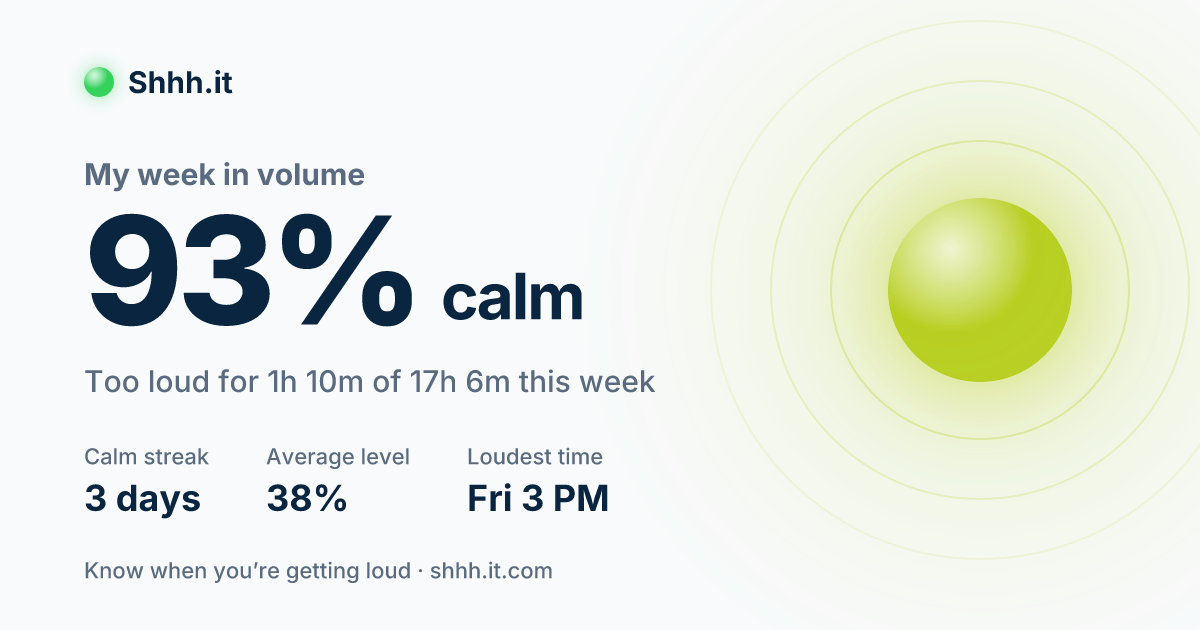
Share
One link shows your week’s card wherever you paste it. It carries your totals and nothing else.
Privacy
An app that uses your microphone has to earn its place. This is everything Sound Meter does with what it hears.
It works out one number, how loud you are right now, and discards the audio as it goes. Nothing you say is recorded, transcribed or stored.
No account, no ads, nothing sold or shared. Your history is a folder of loudness numbers on your Mac that you can export or delete whenever you like.
Every line of the app is on GitHub, and every release is signed and notarized by Apple.
Want every detail? Read the privacy page.
The details
Sound Meter does one thing and stays out of the way while it does it.
Visible over every window and full-screen app, calls and slides included. Drag it anywhere.
Built-in mic, AirPods or a studio setup. Pick the one you’re using and switch any time.
Three sizes, three opacities, and level symbols so it reads clearly even if colour doesn’t.
New versions install quietly in the background. Nothing to keep up with.
No. Sound Meter only measures how loud the microphone signal is, moment to moment, on your Mac. No audio is recorded, stored, or sent anywhere. The app is open source, so you can read exactly what it does, and the privacy page spells it out.
Yes. It listens to your microphone independently, so it works alongside any calling app, and in person too.
No. Voice Focus subtracts whatever your Mac is playing, so music or a call on speakers doesn’t count as you. macOS asks once for permission to hear system audio; it is used only for that and never recorded. Say no and Sound Meter still works: it simply measures everything the microphone hears. Needs macOS 14.2 or later.
It tunes itself to your voice, but you’re in charge. Hover over the orb and choose Settings, then pick one of five sensitivity levels or choose Relearn my voice to have it listen again.
Only while Sound Meter is listening, and you can pause it whenever you like. Turn on Listen only during calls and it lets go of the microphone whenever no other app is using it.
It’s optional. If you connect it, Sound Meter reads your events from the macOS Calendar app to show how loud you were in each meeting. Events are read on your Mac while Insights is open and are never stored or sent anywhere. To include a Google or Outlook calendar, add that account to your Mac’s Calendar app.
Only if you share your entire screen. Share a single window or tab and the orb stays between you and your Mac.
There are two: one for Macs with Apple silicon (every Mac sold since late 2020) and one for older Macs with an Intel chip. This page picks one for you and says which. To check, choose Apple menu → About This Mac: “Chip” means Apple silicon, “Processor” means Intel.
Click the Sound Meter icon in your menu bar and choose Quit. To uninstall, drag Sound Meter from Applications to the Trash.
Yes. Free, with no account and no ads. The source code is on GitHub.